How to Use an NFC Google Review Card
Learn how to use an NFC Google review card to make review requests simple at the counter, on tables, or at checkout for faster customer action.
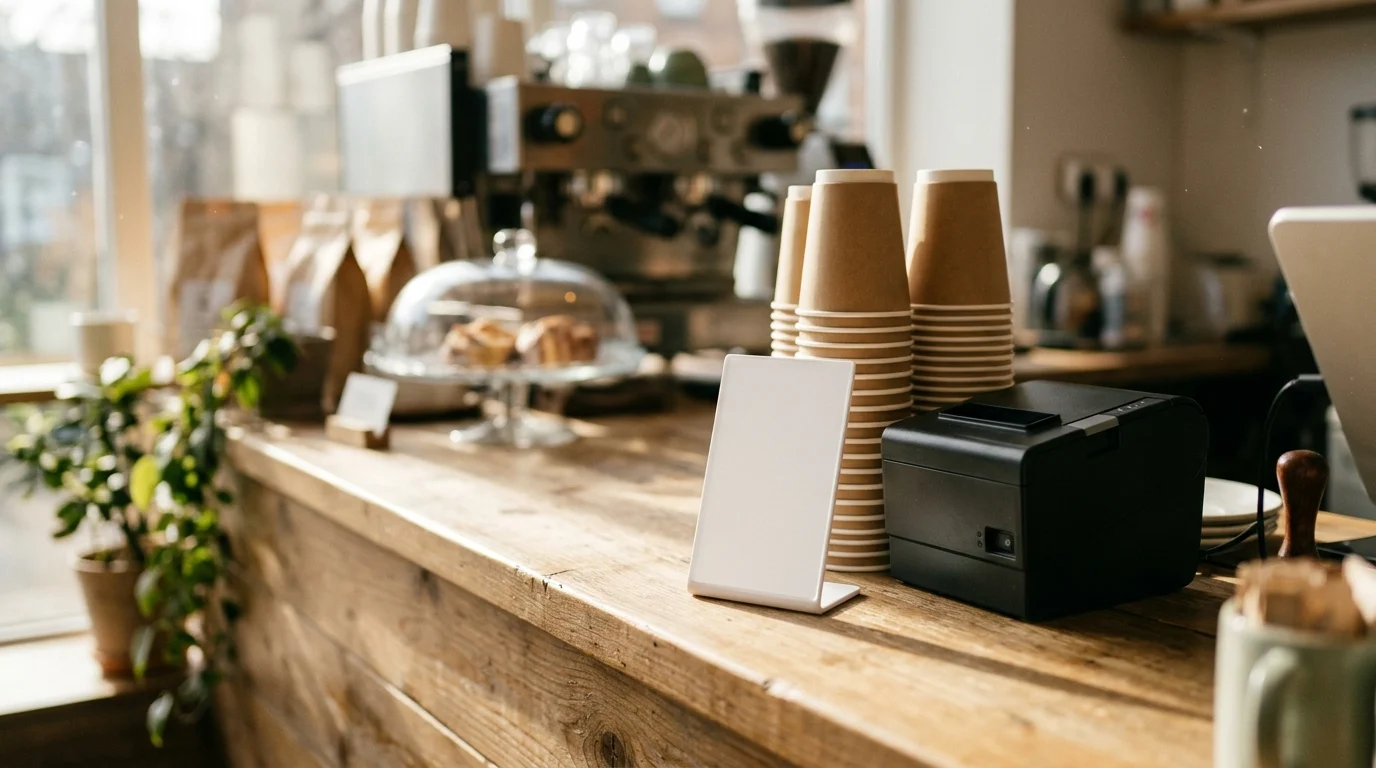
An nfc google review card sends customers to your Google review page with a single tap. You place it where people naturally pause, and they can leave feedback in seconds without typing a long link.
That makes it useful for cafés, salons, dental clinics, auto shops, real estate offices, and any business that serves people face to face. If you want a countertop option, a Google Review Card is a simple place to start, and a classic white review card works well at reception or checkout.
What is an NFC Google review card?
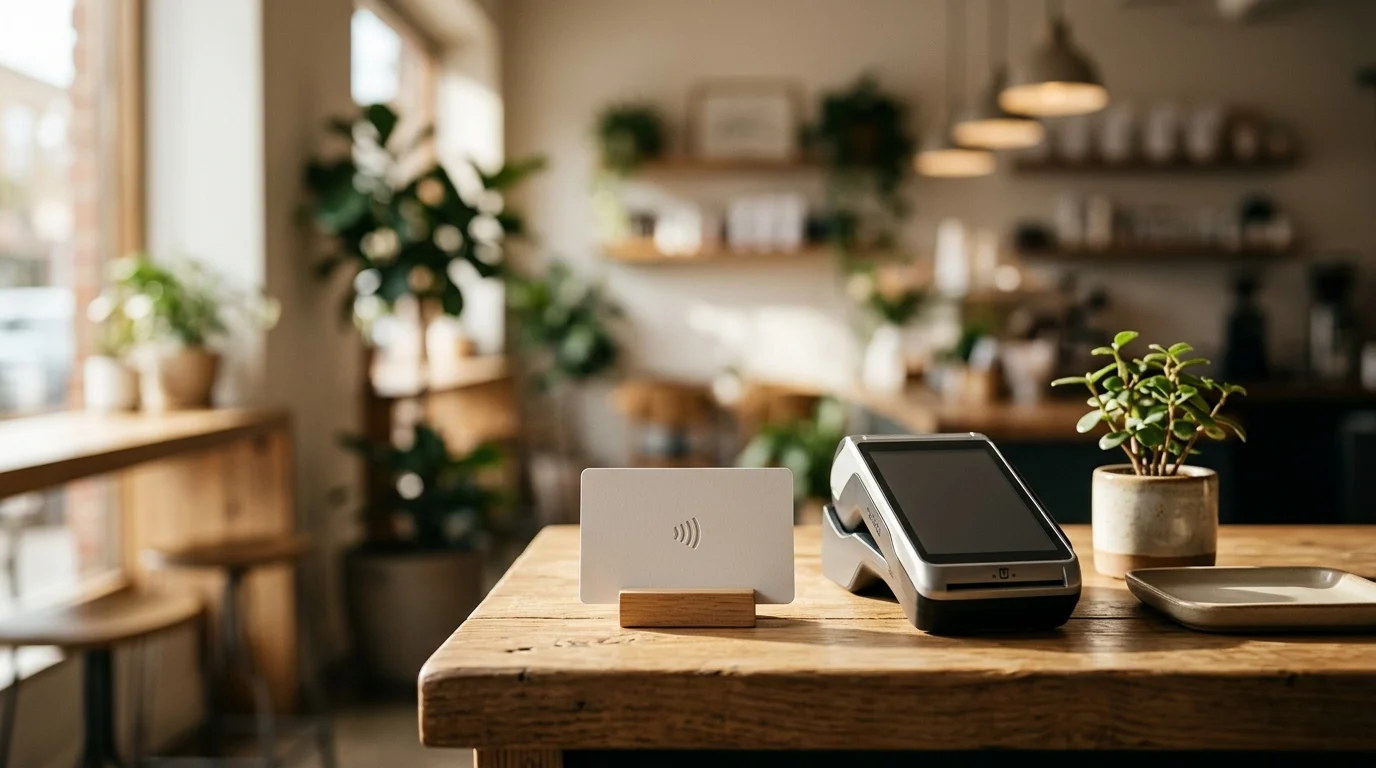
An NFC Google review card is a physical card or stand with a chip inside. When a customer taps it with a compatible phone, the phone opens your review link automatically.
You do not need an app for the customer. In most cases, the experience feels as easy as tapping a card at a contactless payment terminal.
How should you set up an NFC Google review card?
Set up the card once, then place it where customers finish paying, picking up an order, or checking out after a service. That is usually the best moment to ask for a review because the experience is still fresh.
- Choose the Google review page or short link you want customers to open.
- Program the NFC card or stand with that link.
- Test it with both iPhone and Android phones.
- Put it on the counter, table, or wall where customers can tap it easily.
- Train your staff to point to it at the right moment.
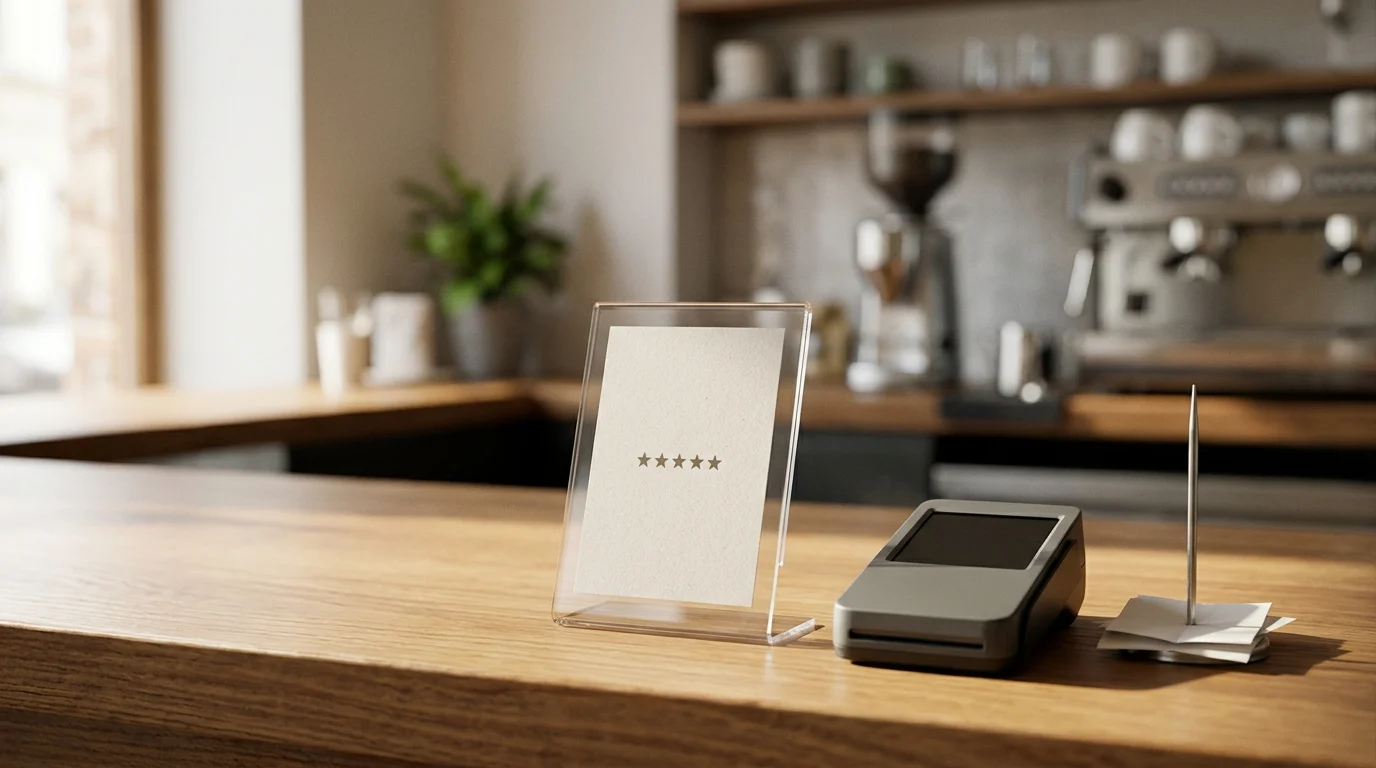
If you want a ready-made counter display, the acrylic tabletop review stand gives you a stable way to keep the prompt visible near the register.
Where should you place it for the best response?
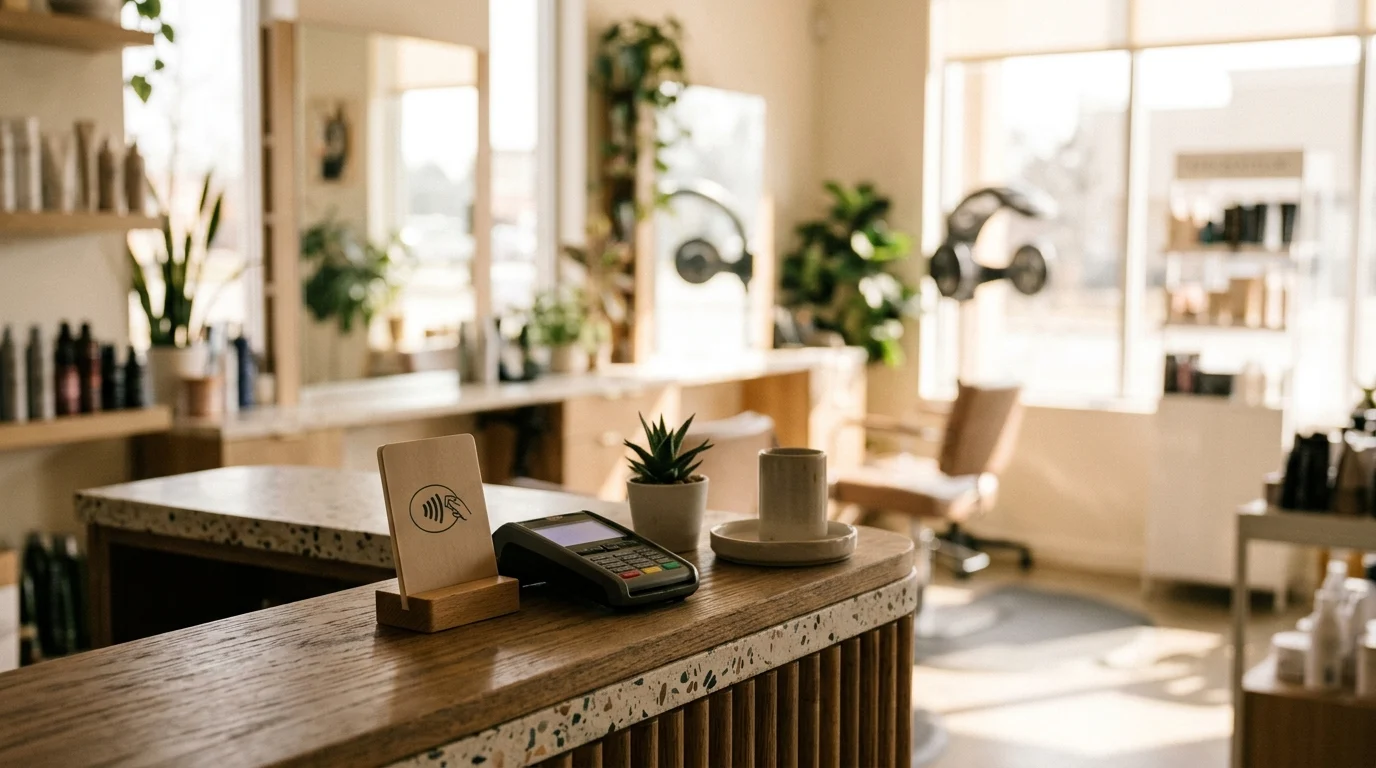
Place the card where customers are already waiting or wrapping up. For a café, that may be the pickup counter; for a hairdresser, the reception desk; for a clinic, the checkout station; and for an auto shop, the service desk.
A table stand often works better than a card that gets moved around. If your business has a front desk, a small stand or wall sign can keep the review request in the same spot every day.
Place the review prompt at the moment of satisfaction, not after the customer has left.
What should you say when you ask for a review?
Keep the request short and specific. You are not asking for a favor; you are making it easier for a happy customer to share a quick opinion.
For example, a salon receptionist might say, “If you have a minute, you can tap this card to leave us a Google review.” A mechanic might say, “Tap here if you want to tell others about your service today.”
You can also point customers to helpful guidance on the review page itself, such as what to say on the landing page, so the next step feels clear.
How do you make tapping easier on iPhone and Android?
Most newer phones support NFC, but the tap area can vary. Tell customers to hold the phone near the top half of the device if the first tap does not trigger immediately.
For older phones or guests who prefer scanning, choose a display with both NFC and QR code support. That is why many businesses use a review stand & sticker or a T-shape display, since it gives customers two ways to open the same review page.
How can you use the card without being pushy?
The best results usually come from calm, simple timing. Ask after a haircut, after a meal, after a successful repair, or after a helpful consultation, then let the customer decide.
Do not block the counter with a hard sell or repeat the request too many times. A visible card and a polite sentence are enough for many businesses.
Which NFC review products fit different business types?
Different spaces need different formats. A single card may suit a small desk, while a stand is better for restaurants, cafés, and reception counters that want the prompt to stay upright and visible.
| Business type | Useful format | Why it helps |
|---|---|---|
| Café or restaurant | Table stand | Customers see it while waiting or paying |
| Salon or spa | Counter card | Easy to point to after the appointment |
| Clinic or dental office | Front desk stand | Fits a reception workflow |
| Auto shop | Service counter card | Works well when the customer picks up the vehicle |
If you manage a café or restaurant, the white NFC review stand gives you a clean tabletop option. For multi-location teams, the corporate solutions page may be more practical because it supports brand consistency across several staff members or branches.
How do you keep the review flow organized?
The review request should be part of your regular checkout process, not an extra task that depends on one employee remembering it. When the whole team knows when to mention it, the process becomes more consistent.
That is especially helpful for busy shops, clinics, and service businesses with many daily interactions. You can also pair the review card with other digital touchpoints, such as a contact card or social follow card, if you want a cleaner customer journey.
Frequently asked questions
Do customers need an app to use an NFC Google review card?
No, they usually do not need an app. The tap opens the review link on their phone browser, which keeps the process fast and simple.
Can you use one card for more than one location?
It is better to use a separate link for each location if you want reviews to go to the correct Google Business Profile. That is especially important for businesses with multiple branches.
What if a customer does not have NFC enabled?
Use a stand that also shows a QR code so the customer can scan instead. A combined NFC and QR format covers more phones and makes the prompt more flexible.
Where should you send people before they leave a review?
Send them directly to your review page, not to a general homepage. Fewer steps usually means a smoother experience and fewer drop-offs.
Conclusion
An NFC Google review card works best when it is visible, easy to tap, and introduced at the right moment. Use it at checkout, pair it with a clear review link, and keep the request short.
If you want to set up a simple review flow for your business, choose the format that matches your counter or desk and test it with a few phones before you start using it every day.